Custom Domains
Currently there are two ways to use a custom domain with your Statusflare account. SSL for SaaS is the easiest but does cost money. Another way is for each user to create a workers proxy to bind to their status page.
SSL for SaaS
SSL for SaaS is the easiest way to get your domain linked to your status page on Statusflare. This system is currently not automated and if you would like to use it you must contact Adam. Additionally, this method requires the "Pro" Statusflare plan.
Worker method
Another method that has been tested to work is to create a custom proxy with a Cloudflare Worker on your account.
Prerequisites
- In order to use this method of adding a custom domain you must have a Cloudflare account. Please note that Cloudflare is free.
- The domain that you want to use also has to be hosted on Cloudflare.
- You must also have a Statusflare status page already set up.
Add a worker
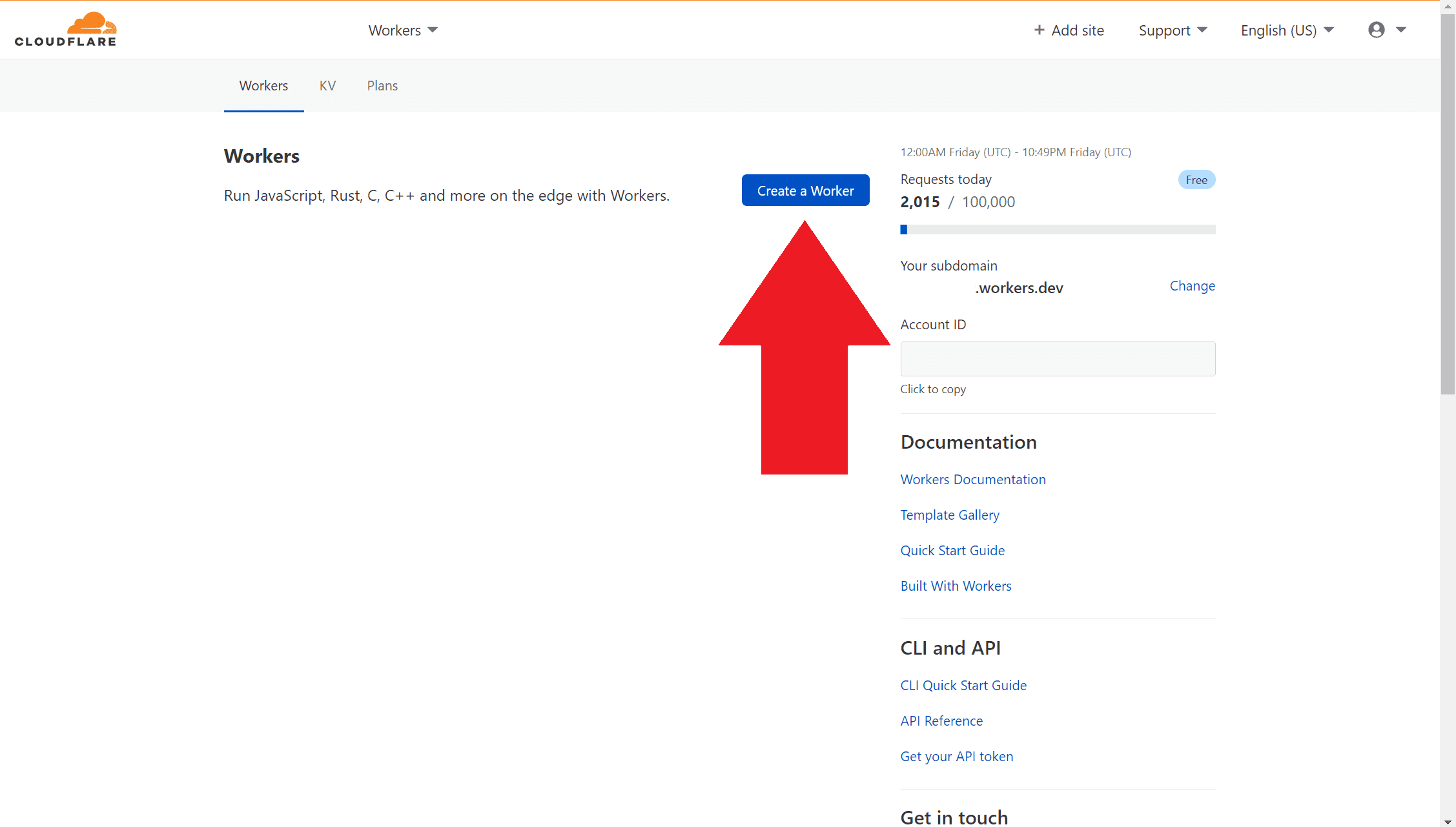
The first thing to do is to go to your Cloudflare Workers dashboard and press the blue "Create a Worker" button in the top of the page.
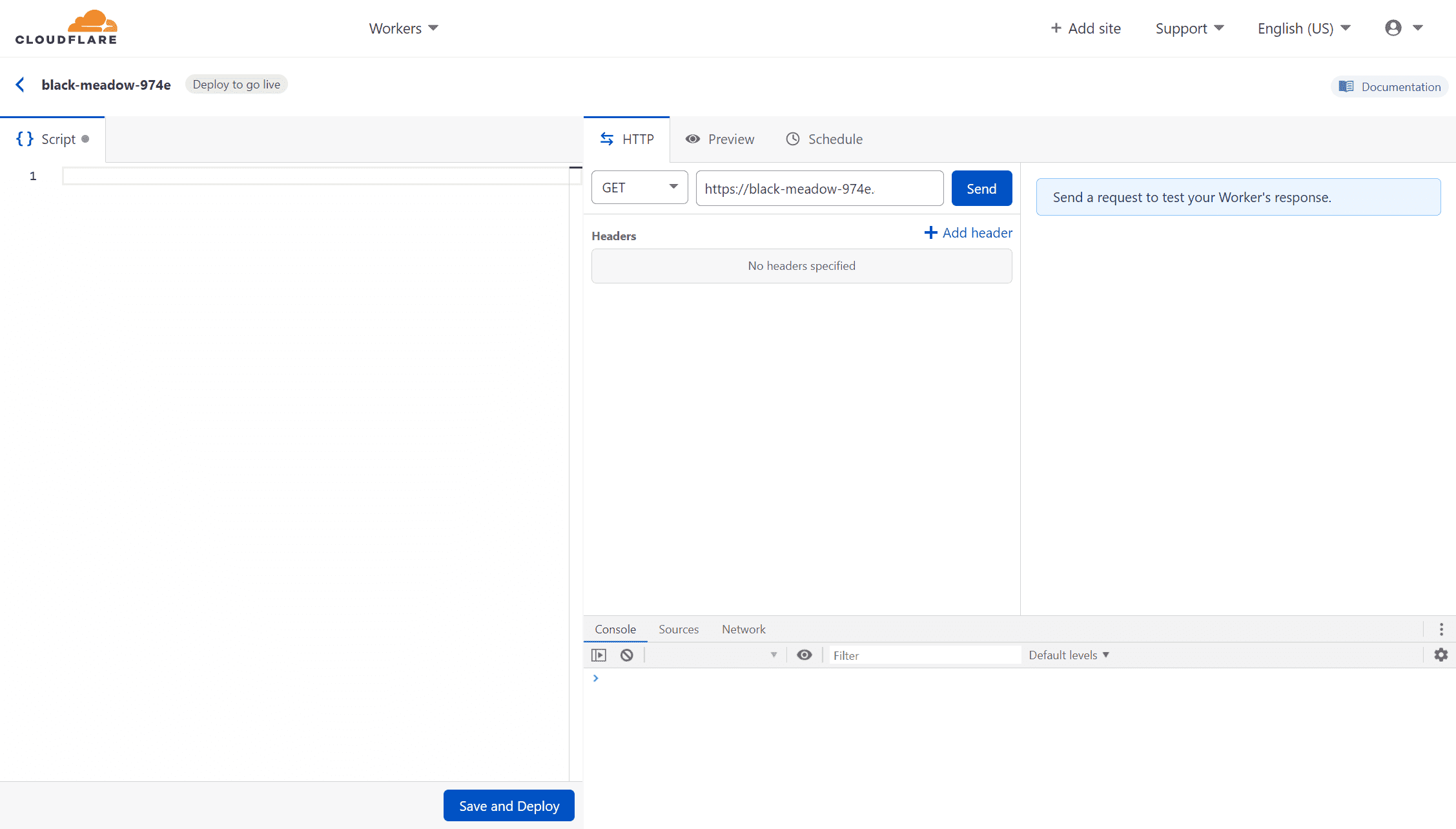
A new window will come up after you press the button. You might see text in the script box, you can go ahead and remove this text.
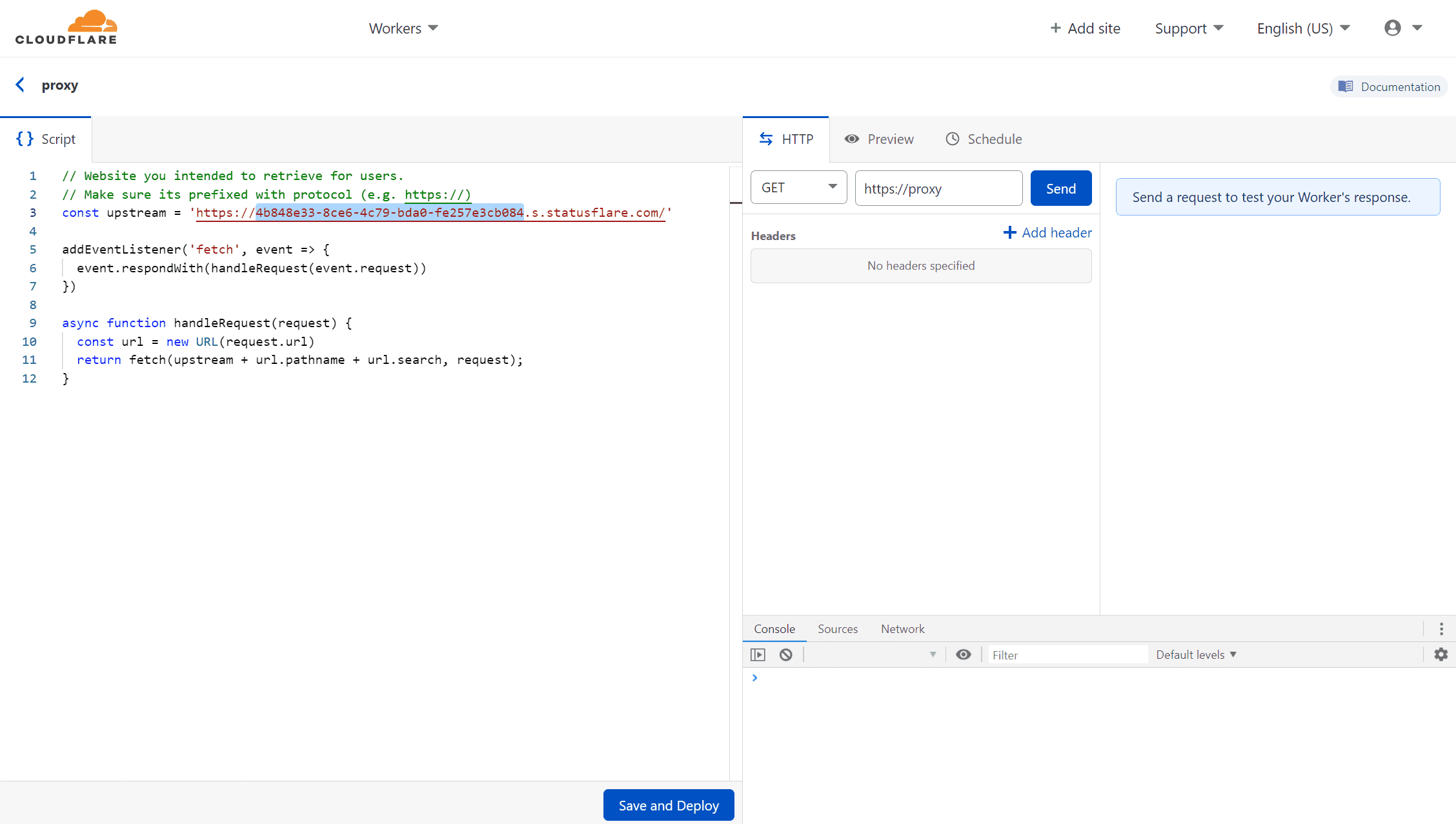
Next you will paste this script in the box:
worker proxy template// Website you intended to retrieve for users.// Make sure its prefixed with protocol (e.g. https://)const upstream = 'https://[uuid].s.statusflare.com'
addEventListener('fetch', event => {  event.respondWith(handleRequest(event.request))})
async function handleRequest(request) {  const url = new URL(request.url)  return fetch(upstream + url.pathname + url.search, request);}
Next press "Save and Deploy"
DNS settings
After that you will need to configure your Cloudflare dns settings to point to your new worker.
Go to your dns zone on your Cloudflare account and create an "A" record for the subdomain you wish to use. Have the record point towards 1.1.1.1 with the orange cloud on.

Save the record.
Next, go to the Workers route assignment page on the regular dashboard.

Press the gray button "Add Route," insert the domain name you set earlier, and select your worker from the dropdown.

Press "save" and your status page should be published on the domain that you set!